Create a task
'priint: Create new Task'
Configuring
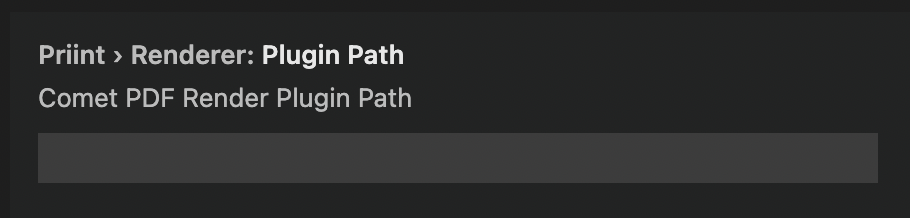
To use this command, PDF Renderer Path must first be configured in the settings. The path usually ends in ${version}/comet_pdf
Steps
-
Type in the name of the task

-
Type in the name of the shortcut which would be used for the task

-
The task will then be created in
${projectFolder}/.vscode/task.json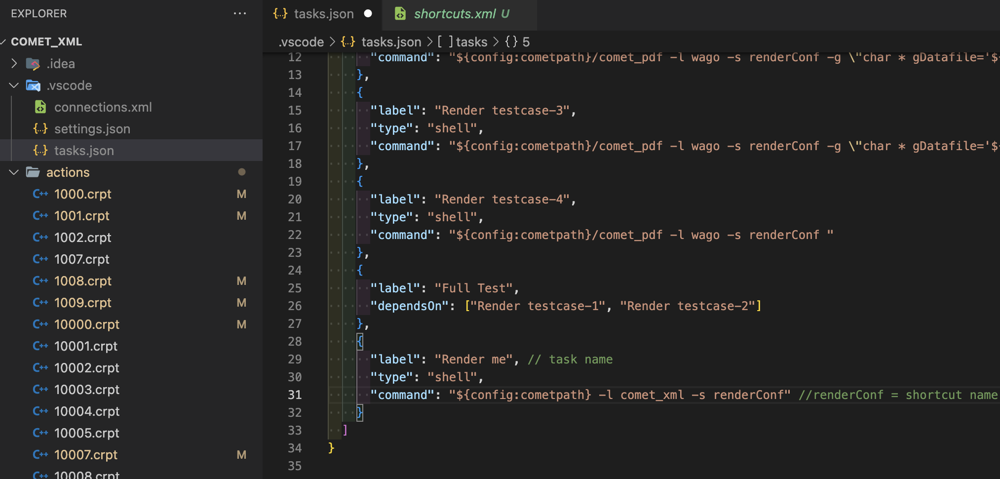
-
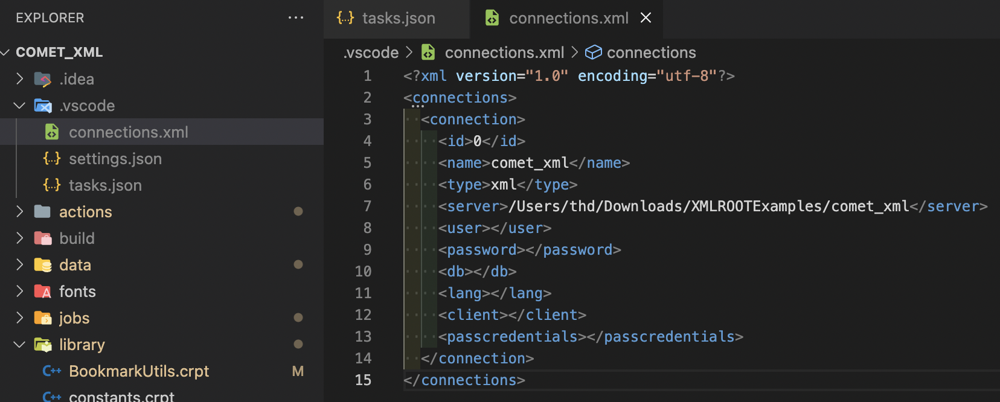
A custom connections.xml will be generated inside the .vscode folder
-
You can config the shortcuts in shortcuts.xml, which is in the main directory of your cometpdf renderer.
Relevant XML Structures
<shortcuts>
  <shortcut>
    <name>renderConf</name>
    <!-- <l>wago</l> -->
    <i>$COMETDATA/master-documents/default.w2ml</i>
    <f>$DATAFOLDER/images</f>
    <!-- Entryscript -->
    <e>$COMETDATA/scripts/priintgrid_Rendering_ProductByRule.cpp</e>
    <!-- <x>XCache</x> -->
    <!-- <V>X</V> -->
    <!-- logfile -->
    <v>$COMETDATA/build/logs/priintgrid_rendering.log</v>
    <!-- <u>$COMETDATA/build/logs/priintgrid_pdflib.log</u> -->
    <!-- font name -->
    <P>$COMETDATA/fontnames.xml</P>
    <fontfolder>$COMETDATA/fonts</fontfolder>
    <!-- xml fast query -->
    <r>fast</r>
    <!-- metadata of document -->
    <metadata>0</metadata>
    <!-- output file -->
    <!-- <o>$COMETDATA/build/output.pdf</o> -->
    <!-- launch output -->
    <!-- <L>1</L> -->
    <save>$COMETDATA/build/output.w2ml</save>
    <check-webimages>0</check-webimages>
  </shortcut>
</shortcuts>