Installation
The extension might not behave correctly on the Apple MX chips if you are using the Rosetta version of VS Code
Install the plugin
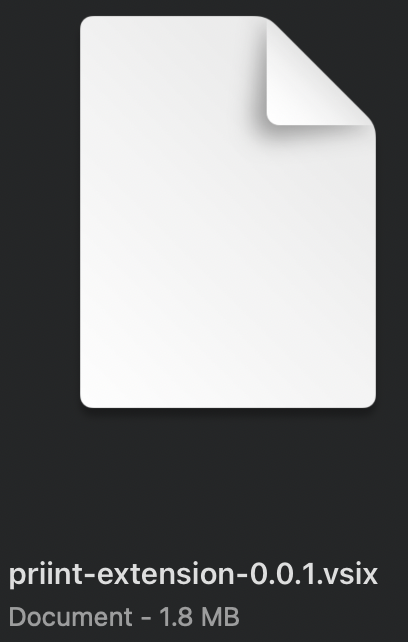
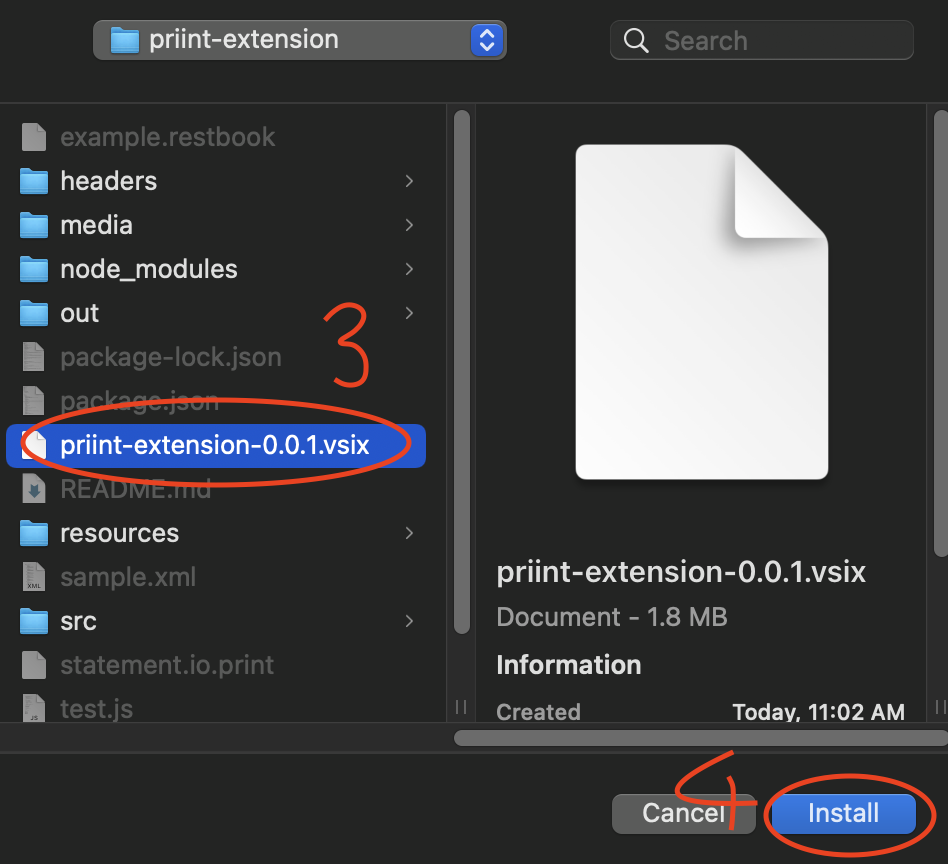
1. You will receive a .vsix package like this
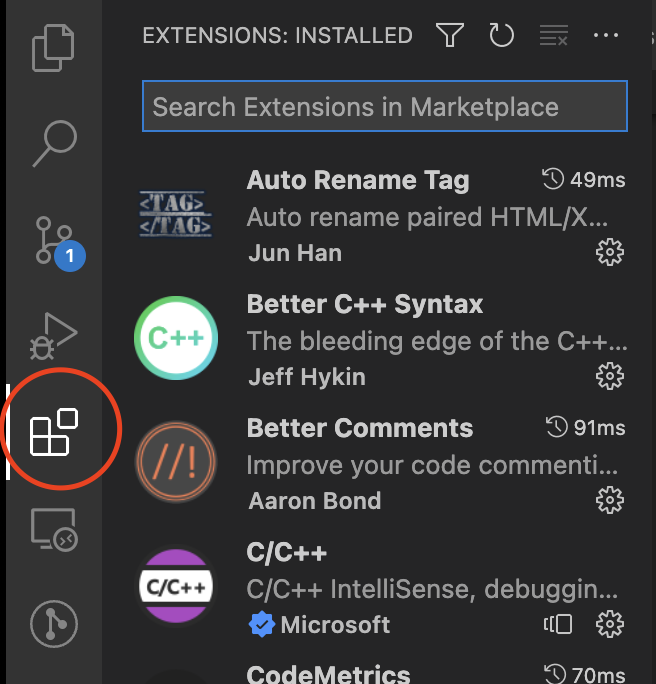
- Open Visual Studio Code and click on the Extensions page (⌘⇧X or Ctrl+Shift+X)
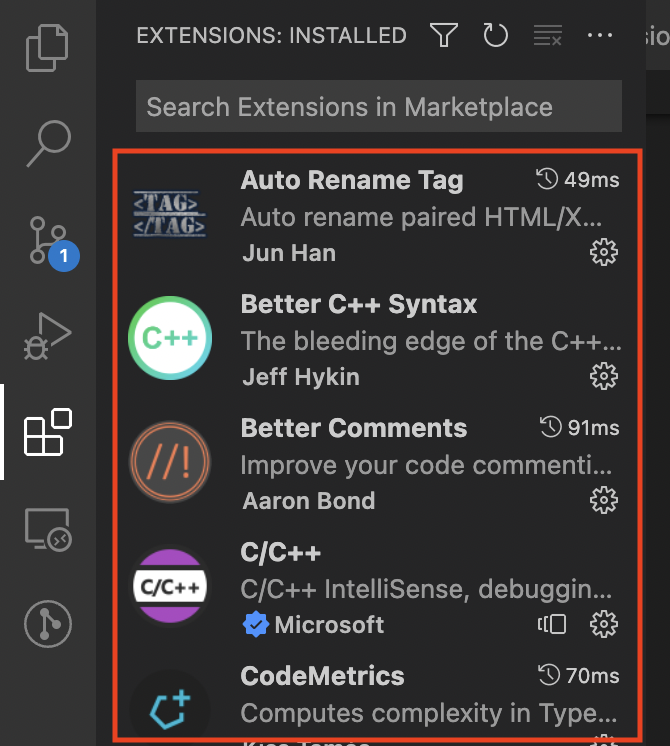
3a. You can either drag the .vsix here in this area and it will be automatically installed...
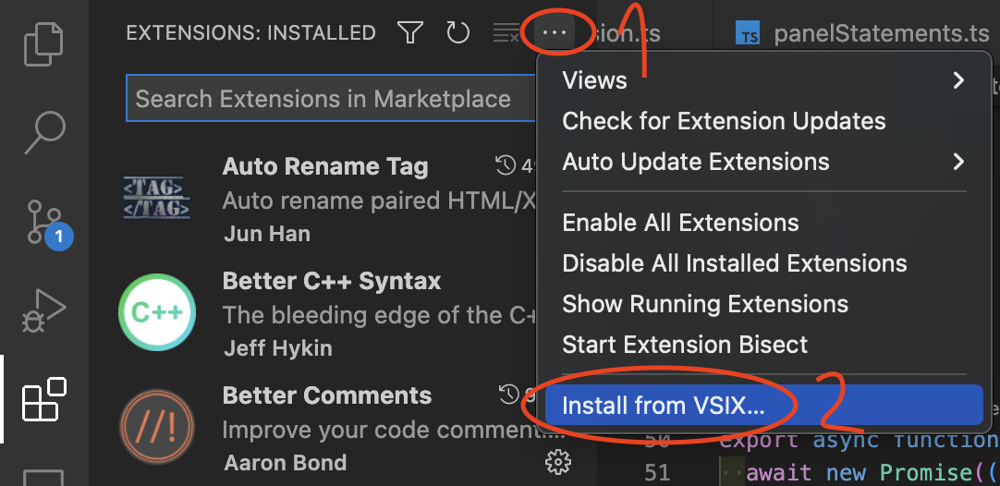
3b. ...or you can press the Ellipsis > Install from VSIX and it will open a dialog for you to guide it to the package's location
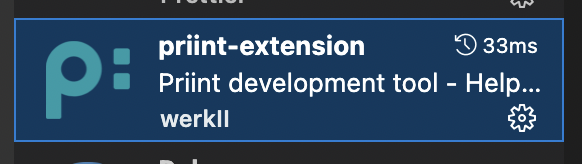
- The extension will appear like below if it's installed successfully. You can start using it after this part.
Update the extension
To update the extension you have to repeat the steps mentioned above. You don't have to uninstall the application to apply an update.
Sidenote: Install in VSCodium
It is possible to install and use the Extension in VSCodium (Free/Libre Open Source Software Binaries of VS Code) just like in the VSCode-Version by Microsoft. See steps above.
The Priint-Extension uses the Header-Files of the standard C++ Extensions by Microsoft.
They are restrictively licensed to only work with the official Visual Studio Code build so VSCodium doesn't come with them and they're not available in the Open VSX Registry (Extension Marketplace).
There is a way to make the Extension work in VSCodium:
- Navigate to the folder /user/path/.vscode/extensions
- Copy the extensions that contain these names:
ms-vscode.cpptools
ms-vscode.cpptools-extension-pack
ms-vscode.cpptools-themes
ms-vscode.cmake-tools
ms-python.vscode-pylance
... and paste them into the folder /user/path/.vscode-oss/extensions - Reload the VSCodium window.
- Navigate to the python-settings and enable Pylance as the language server.