Handlebars templates
The extension detects Handlebars template packages under rendercss/ in your workspace and lets you edit, compile, and preview them live.
Open the view
In the sidebar, select Handlebars Templates under the priint:cloud activity.
If no packages are found, the view shows a welcome message with a Scaffolding new template link.
Create a new package
- Click Scaffolding new template in the welcome view, or run priint:cloud Scaffolding new template from the Command Palette.
- Follow the prompts. The extension creates a
rendercss/folder structure in your workspace. - Use New Template (+ icon in the view title bar) to add a template job to an existing package.
Browse existing packages
Packages already under rendercss/ appear automatically. Use Refresh Handlebars templates (↻ icon) in the view title if the tree looks out of date after changes made outside VS Code.
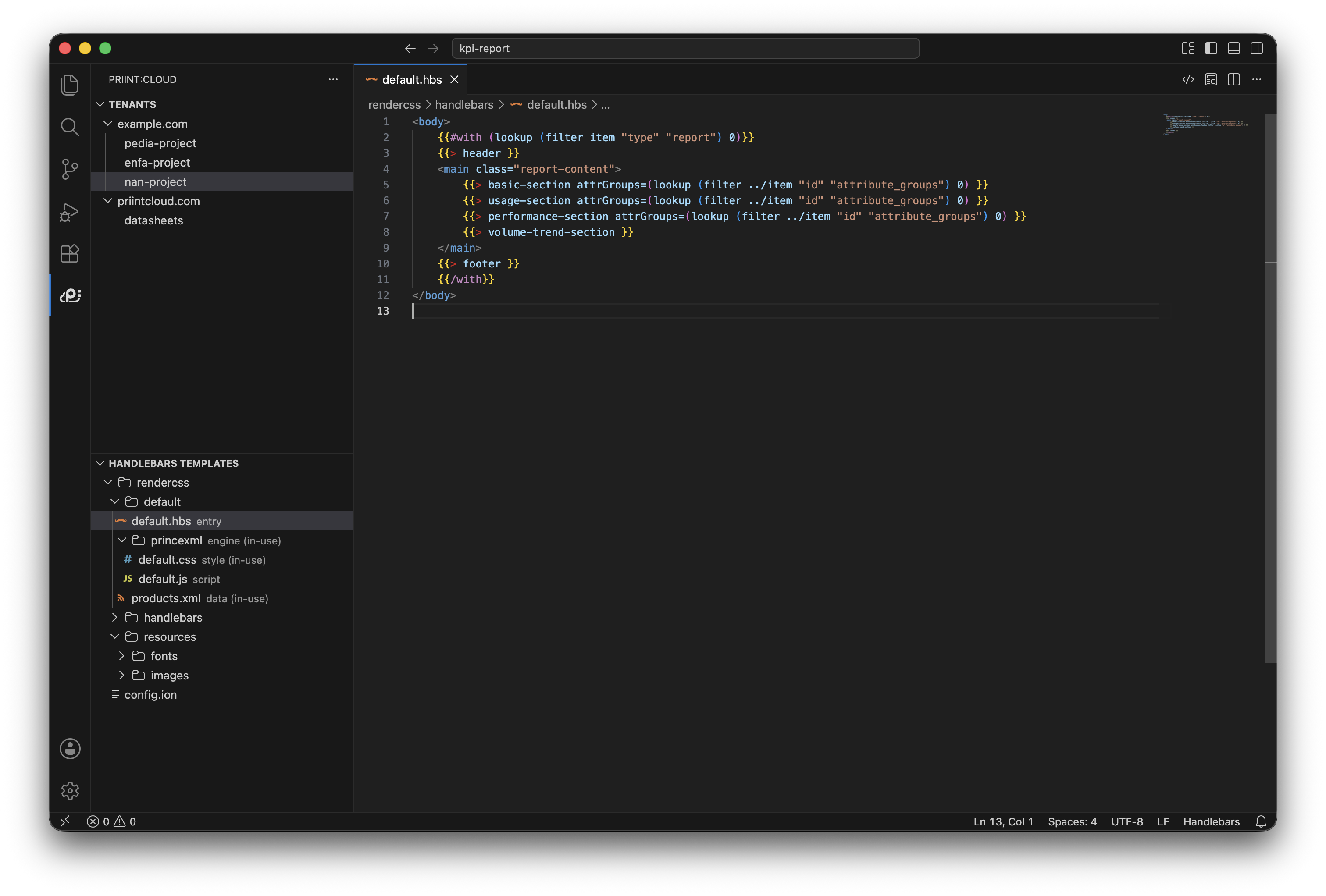
Package structure
| Area | What it is |
|---|---|
| Template / job | One publishable template (under jobs/…) |
Entry .hbs | Main template file the compiler starts from |
| Engine folders | e.g. weasyprint, princexml — CSS / JS for each print engine |
| Data files | products.json or products.xml — input data for compilation |
handlebars/ | Shared partials (reusable template fragments) |
resources/ | Images, fonts, and other assets (when present) |
js_helpers/ | Optional custom JavaScript helpers |
In-use cues: Items marked (in-use) (e.g. data (in-use)) show what the compiler currently uses. They update when you change the active data file or engine.
Work with files
Open a file: Click any file in the tree to open it in the editor.
Set the entry file: Right-click a partial .hbs file → Set as Entry File. This makes it the main template used for compilation.
Set input data:
- Find a data file (
products.jsonorproducts.xml) under the template. - Right-click it → Set as input data.
The selected file becomes the active data source and is marked (in-use).
Set the render engine:
- Find an engine folder (e.g. weasyprint) under the template.
- Right-click it → Set as render engine.
The engine's CSS style is used for preview. The active engine is marked (in-use).
Create files and folders (right-click context menu):
| Action | What it creates |
|---|---|
| New File | A file inside the selected folder |
| New Folder | A subfolder |
| New Partial | A new .hbs partial file |
| New Engine Folder | A render engine folder (e.g. weasyprint) |
| New products.json | A JSON data file |
| New products.xml | An XML data file |
| New configuration | A .ion configuration file |
| New Style | A CSS style file |
| Add JS helpers | Adds the js_helpers/ folder |
| New JS file | A JavaScript helper file inside js_helpers/ |
Rename: Right-click a file or folder → Rename.
Delete: Right-click → Delete (file/folder), Delete Template (template job), or Delete Package (whole package). Deletions are permanent.
Preview and output
Open an entry file that belongs to a Handlebars template, then use the editor title bar:

Note: The preview buttons can be shown every time you open an
.hbsfile. But only entry file of a template can activte preview window.
| Action | What it does |
|---|---|
| Show HTML Preview | Opens a live preview panel beside the editor |
| Show HTML Raw | Opens the compiled HTML source in an editor tab |
While a preview is open, the extension re-compiles and refreshes the output automatically whenever you save or edit a template, data file, or CSS file.
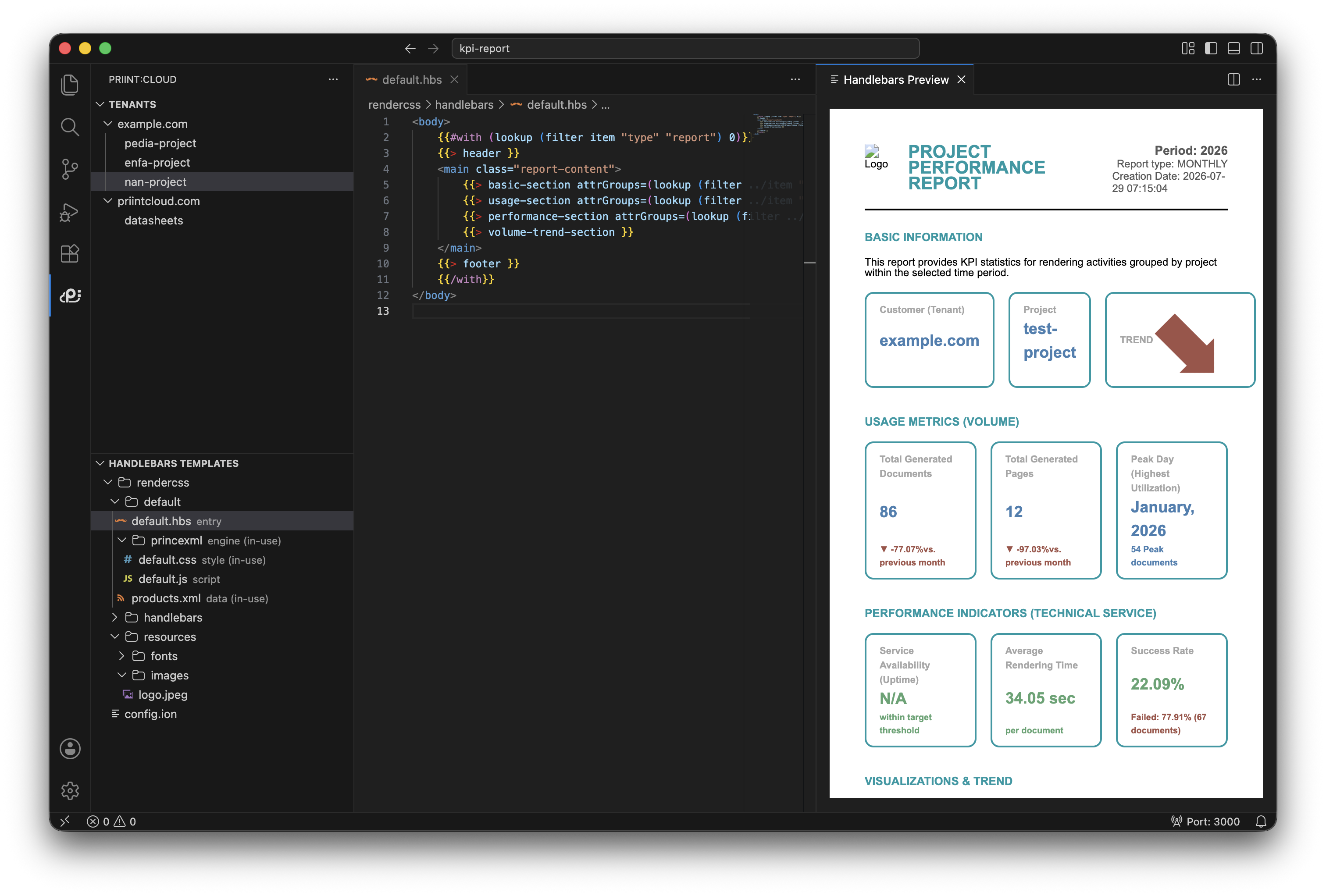
Built-in preview vs Microsoft Live Preview
Show HTML Preview supports two preview hosts:
| Setting value | Behavior |
|---|---|
| default | Uses Live Preview only if you accepted the integration prompt and the extension is installed; otherwise uses the built-in preview |
| enabled | Always uses Microsoft Live Preview when it is installed |
| disabled | Always uses the built-in preview |
The setting is Handlebars: Use Live Preview (priintCloud.handlebars.useLivePreview). See Settings reference.
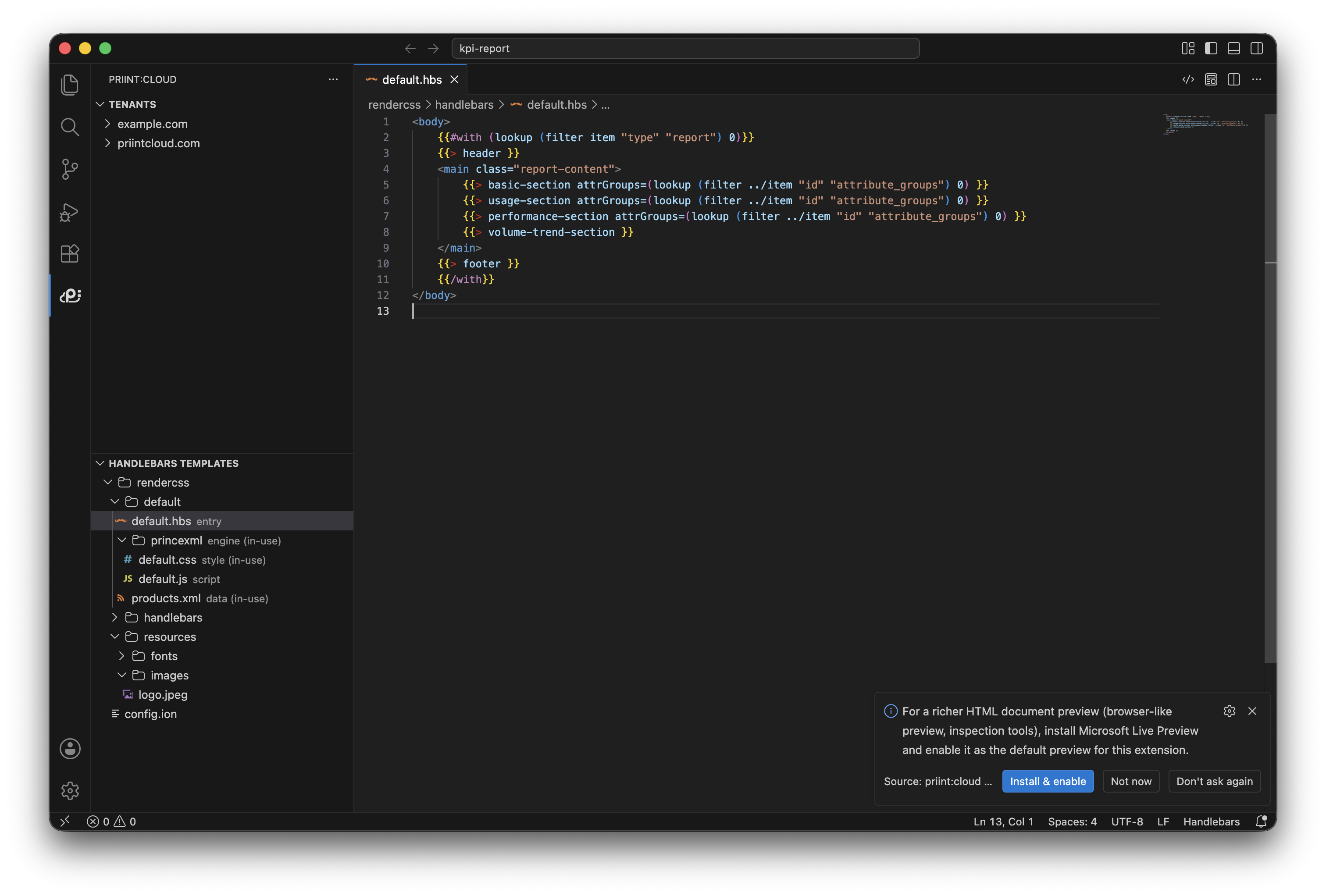
If Microsoft Live Preview is not installed or fails to open, the extension falls back to the built-in preview automatically. After installing Live Preview, run Developer: Reload Window so VS Code can detect it.
Microsoft Live Preview is a separate, optional VS Code extension (
ms-vscode.live-server). By using it, you may have a richer preview window with browser-like features (Inspector tools, developer tools, etc) which will help you design template easier.
Note: At the first time you install the extension, if the IDE doesn't have Live Preview installed, the extension will show a pop-up that allows you to install and integrate it.
CSS Paged Media
CSS Paged Media support approximates print layout — page sheets, @page rules, page breaks — in the preview.
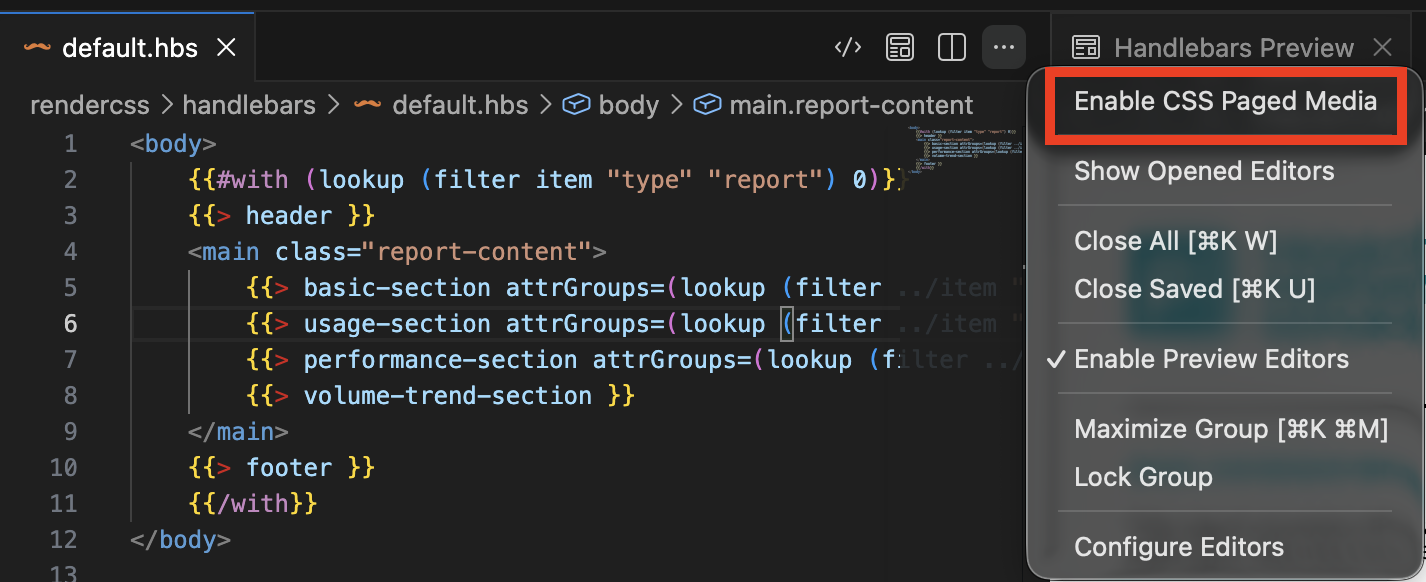
To enable or disable:
- In a template editor: click the ⋯ menu in the editor title bar → Enable CSS Paged Media / Disable CSS Paged Media
- In the built-in preview panel: same toggle in the webview title menu
- In Settings: set Handlebars: Paged Media Preview (
priintCloud.handlebars.pagedMediaPreview)
Default is off.
Note: This uses Paged.js running in Chromium. The layout is a useful approximation for checking page breaks during authoring, but it is not identical to production print engines such as WeasyPrint or PrinceXML.
Helpers and authoring assistance
- Completion — Type a helper name in a
.hbsfile to see suggestions from the built-in helper library. - Hover documentation — Hover over a helper to read its description and parameters.
- Show Handlebars Helpers — Right-click a package in the tree → Show Handlebars Helpers to browse all available built-in helpers.
- Custom helpers — Right-click the package root → Add JS helpers to create a
js_helpers/folder, then New JS file to add custom JavaScript helpers used at compile time.
Built-in helpers are bundled with the extension; no separate installation is needed.