Authentication
Connect for the first time
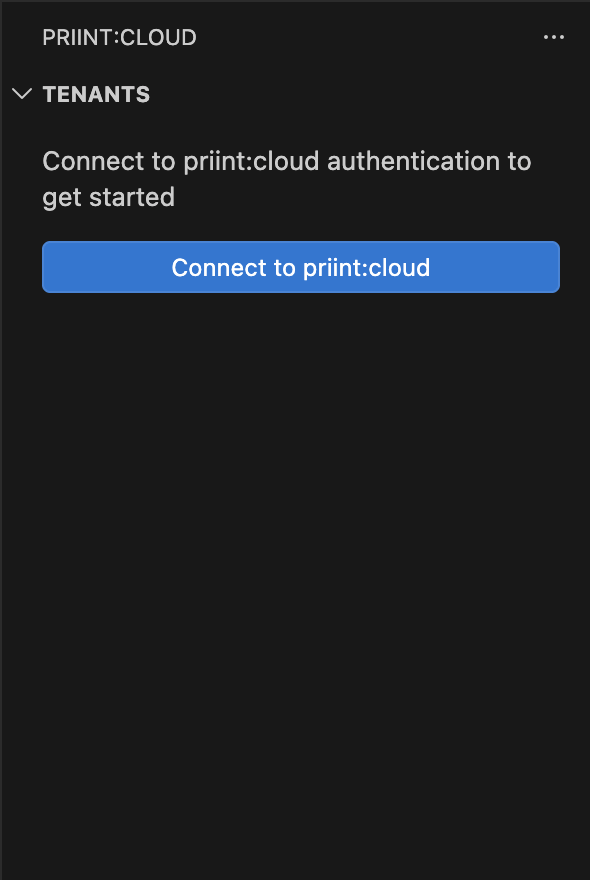
When you are not signed in, the Tenants view shows a welcome panel.
-
Click Connect to priint:cloud (or run priint☁️ Login from the Command Palette).
-
A quick pick asks you to choose an environment:
Option Description development Developer / test server staging Pre-production server production Live production server custom Manually enter API and authentication URLs 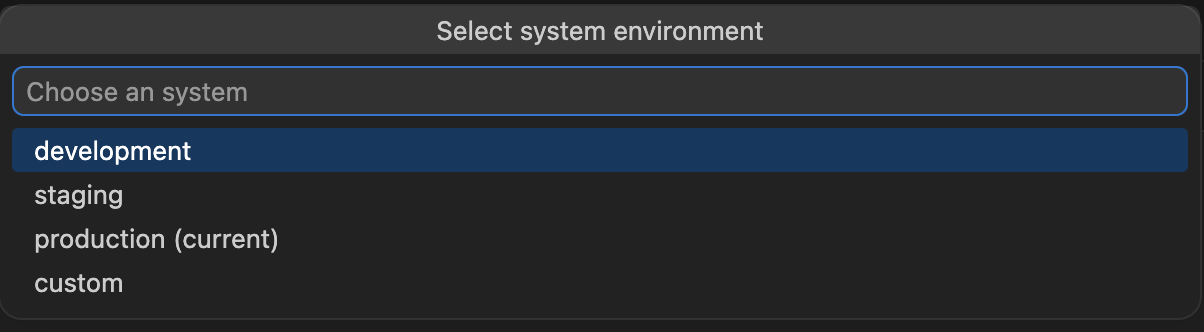
-
Enter your username and password when prompted.
-
The extension connects and loads your tenants into the tree.
You may see:
- "Login successfully" notification — sign-in worked; projects are loading.
- "Login failed: …" with a reason — check your credentials or the selected environment.
- "Username and password are required" — if either field was left empty.
Sign out
Click the Logout button (sign-out icon) in the Tenants view title bar, or run priint:cloud Logout from the Command Palette. All stored credentials and session data are cleared. The tree returns to the welcome state.
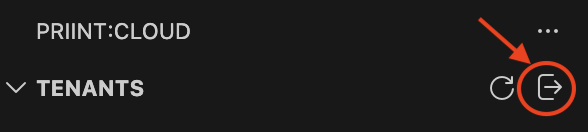
You may see: "Logged out successfully."
Change environment
Run priint:cloud Login again. The extension asks you to re-select an environment before prompting for credentials. You can also use the Connect to priint:cloud welcome button after signing out.